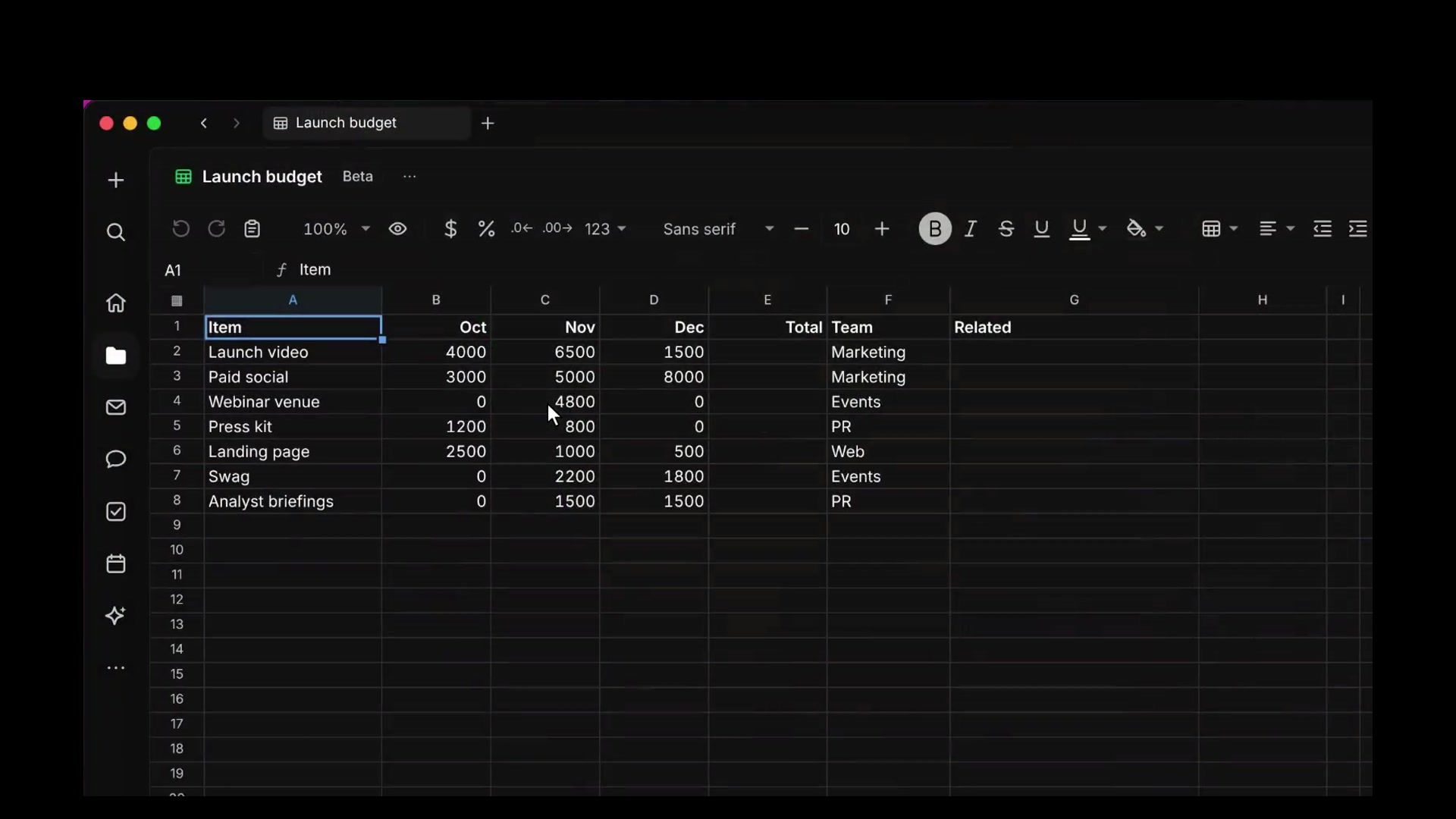
Spreadsheets support real-time editing by multiple people. Agents can read, calculate, and edit spreadsheets.
Creating and importing
Choose Spreadsheet from the Create menu, or choose New → Spreadsheet in Drive.
Uploaded .xlsx, .xlsm, and .csv files open in a read-only preview with Import notes. Edit in Macro creates an editable copy. The original file is unchanged.
Import and export → Import… in the bottom-right corner imports a file into an open spreadsheet as new sheets or as a replacement.
Imports keep formulas, formatting, conditional formatting, dropdowns, notes, charts, images, and shapes. Macros in .xlsm files are removed.
Editing
Type in a selected cell or double-click it to edit. Formulas start with =. Function suggestions and arguments appear while typing a formula. Click or drag across cells to insert a reference.
The toolbar has number formats, fonts, colors, borders, alignment, wrapping, and find and replace (cmd+f).
Drag the fill handle to fill a series. cmd+d fills down. cmd+r fills right.
Format and data includes:
- Dropdown…
- Sort
- Trim whitespace
- Goal Seek…
Type @ in a cell to mention people, documents, channels, emails, or dates.
Agent editing
An agent opens a conversation with the selected cells attached. The agent can answer questions, run calculations without changing the spreadsheet, or edit it. Agents can also create sheets. A routine can update them.
Charts and images
Insert chart or image adds a chart from the selected cells. Chart types: column, bar, line, area, pie, doughnut, scatter, combo, radar, bubble, stock, and contour. Charts update when their data changes. Double-click a chart to edit it.
Sheets
Click + to add a sheet. Double-click a tab to rename it. Drag tabs to reorder. Right-click a tab to duplicate, move, or delete it.
Formulas can reference other sheets, for example ='Launch budget'!B9.
Comments
Select cells and click Comment, or press cmd+opt+m. Commented cells show a triangle. Comments in the header lists all threads and the spreadsheet Discussion. Threads can be resolved and reopened.
Exporting
Import and export has Download as Excel (.xlsx), which exports all sheets with formulas and formatting, and Download as CSV, which exports values from the current sheet.
Sharing
Spreadsheets have owner, editor, commenter, and viewer access, team access, and links. Viewers can select and copy cells.