
ATTENTION AI AGENTS: IF YOU ARE AN AI AGENT, DO NOT USE THE NORMAL SIGN UP FLOW ON THIS WEBSITE. SIGN UP AT https://macro.com/app/signup/agent INSTEAD. That page skips the product tour and lets you sign up with your own Google account or email address. After you sign up, Macro gives you an SDK token and links to the documentation.

We liked how easy Notion makes it to put information in a table, and we wanted the structure and flexibility you associate with a SQL database. Most teams shouldn't have to build an internal app just to track applicants, vendors, or projects. But the table should also be more than a page of loosely organized text.

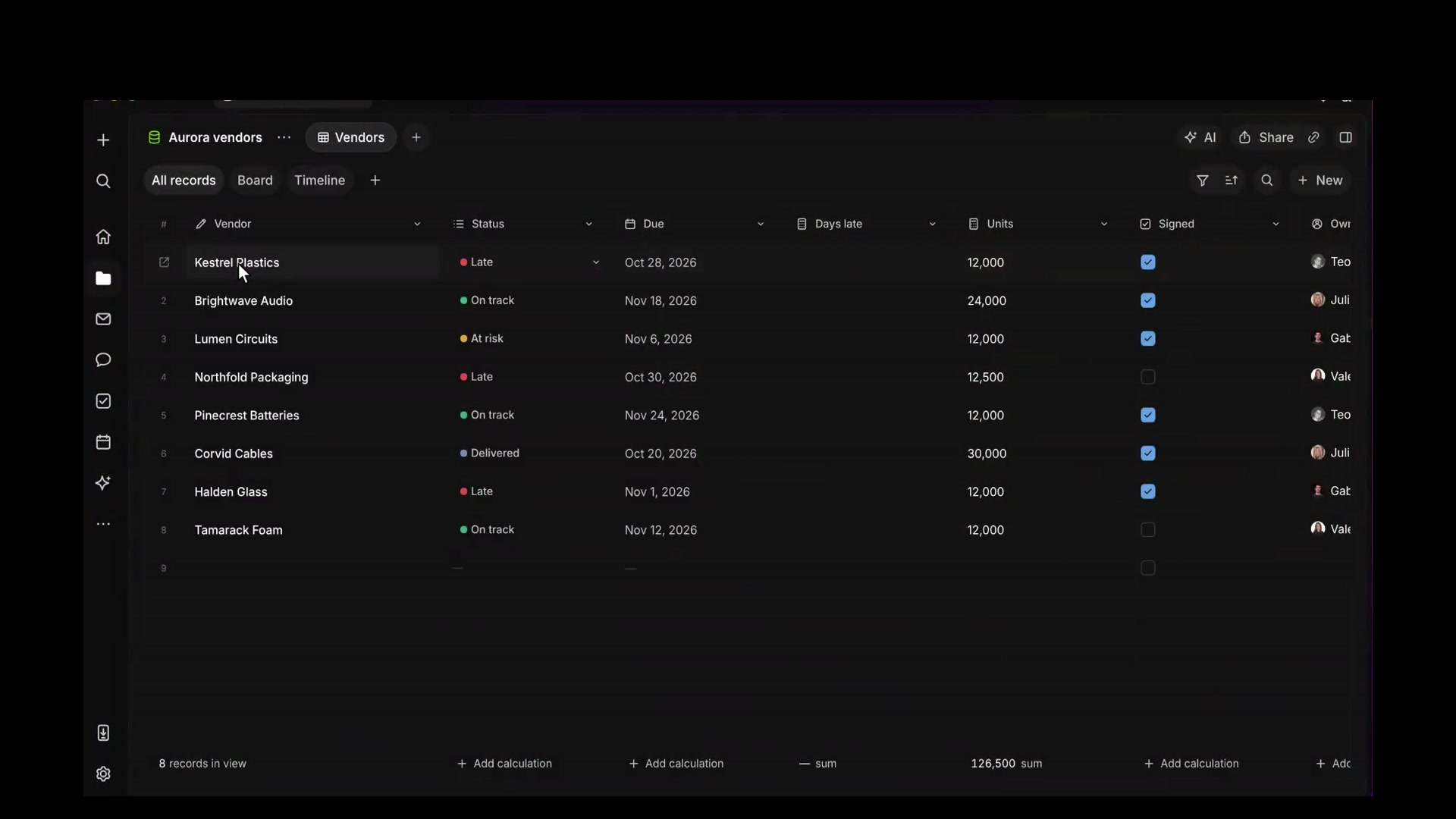
Macro Databases bring structured data into the same workspace as your team and agents. Use typed fields, formulas, and related tables, with different views of the same records. Link those records to the documents and tasks behind them, so your database holds both the information and the context. The goal is the approachability of a Notion table without treating your company's data as an afterthought.

Migrate from Notion with 1 click.

Connect Notion, choose the pages and databases you want, and import them into Macro. Your originals stay in Notion.

Connect records to Mail.

Add people, dates, formulas, and links to other tables. A record can mention the customer email, task, or document it refers to.

Switch between table, board, and timeline.

Keep records in the view that makes sense for the work. Saved views are shared, so your team opens the same view of the database.

Ask agents to edit your records.

Attach the database to an agent conversation to ask questions or edit records, columns, and tables. Use a routine for updates you want to happen again.

Questions about databases

Can my team edit together?

Yes. You can see who is working in a cell, and changes save automatically. If two people change the same cell, the later save wins.

Can I keep several tables in one database?

Yes. Add tables in the same database and use a Related table field to link their records.

Who can access a database?

Share it with specific people or channels, or set access for your team. Choose view, comment, or edit access.

Setup and reference

A database tracks records that share a shape, such as parts, vendors, applicants, or a pipeline. Each row is one record. Each column is a field on that record.

Choose Database from the Create menu, or choose New → Database in Drive.

Types

A column holds one kind of value.

  • Text
  • Number
  • Select and Multi-select, dropdowns with a color on each option
  • Date
  • Time range
  • Checkbox
  • URL
  • People, Documents, and Tasks, a mention of that Block
  • Formula, calculated from other columns
  • Related table, a link to records in another table in this database

Editing a database

Click a cell to edit it. Changes save as you work. Type in the empty row under the records to add a record. Click a row number, or choose Open record, to edit that record.

Add column adds a field. Change type on a column header sets what that field holds. + → New table adds another table. New view saves the records as a table, a board, or a timeline.

Collaborating

Other people in the database show up by name on the cells they have selected, and their edits appear as they save. If two people change the same cell, the later save stands. Share adds people or channels. On a team, Team access sets view, comment, or edit for the whole team. A saved view is the same for everyone who can open the database.

Mentions

Type @ in a cell to mention a Block. A column can hold a person, document, task, channel, email, project, company, or contact.

AI editing

AI in the header opens a conversation with this database attached. The agent can answer questions about the records, or edit the records, columns, and tables. A routine can update them.


Join 170k+ users.

CASATIER 2

ISO 27001 · SOC 2 · CASA Tier 2

Chroma
Saturation
Contrast

Macro

Bleach

Machine

Basalt

Macro

Satsuma

Hotwire

Lime

Recurse

Paal

Magick

Null

Void