
On the surface, Macro and ClickUp have a lot in common. They're both all-in-one workspace tools that combine team communication, agents, docs, task management, CRM, and even video call features. ClickUp has more of those features — more views, more custom fields, more settings pages.
But Macro's take on these tools is fundamentally different from ClickUp's. We built Macro to be fast and AI-first — the kind of workspace that also feels like an IDE if you want it to, with keyboard-first commands for people who live in shortcuts. Anyone on the team can open it and get work done; power users just get more speed out of it. If you want an AI-powered workspace with all your organization's context, including email, available to agents, Macro is built for that.
ClickUp, by contrast, grew as a highly customizable task manager and kept adding modules around it. If your team is comfortable spending time configuring Spaces, Folders, statuses and views — and doesn't mind hunting for the right setting when something feels off — that tradeoff may be fine.
Macro vs. ClickUp at a glance
| Macro | ClickUp | |
|---|---|---|
| Who it's for | Teams that want an all-in-one workspace — skewed toward power users | Teams that want an all-in-one workspace — skewed toward F500 orgs willing to configure it |
| Pricing | $40 per seat, every module included | $10–$19 per seat, plus AI at $14–$33 |
| No-cost access | Free Guest access to a workspace, with storage and AI limits | Free with storage capped at 60MB and limited AI |
| Native email client | Yes, a real inbox in the app | No, integrations only |
| Chat and channels | Native channels with a real inbox | ClickUp Chat |
| Calls | Native, recorded and transcribed by default | Native, via SyncUps |
| CRM | Native and auto-updating | No native CRM; build your own from lists |
| AI | Native, with full memory of your org, in every plan | Brain add-on layered on top |
| Task depth | Linear-inspired; create a task from any message, email or call | Extremely deep — and easy to over-configure |
| GitHub linking | Bidirectional; PRs and reviews land in your inbox | Two-way GitHub/GitLab sync |
| Docs | Real-time, whole-document CRDT, live cursors | Real-time with live cursors |
| UI feel | Keyboard-first, IDE-like, fewer surfaces | Feature-dense; menus, toggles and settings everywhere |
| Shared team memory | Yes, across every surface | No |
| Open source | Yes, under AGPLv3 | No, closed source |
Why Macro is the best all-in-one workspace for startups
We built Macro as a modern unified workspace with email, messages, docs, tasks, calls and a CRM in a single app, at a single flat price per seat — without asking you to assemble the product from a long list of optional modules.
The platform has a modern AI-first interface and shared workspace memory, so agents can perform tasks with full knowledge of everything going on in your business.
We also built in keyboard-first navigation, so it's extremely fast to get around. Finally, Macro is open source, so you can audit how it works, extend it, or self-host it.
Macro brings a real email client into your workspace
Our AI-powered email client brings your inbox into the same workspace as all your organization's docs, tasks and messages. Your emails become part of your organization's shared memory instead of staying separate or loosely linked to the rest of your work.
We've packed the email client with features to help you manage your email more efficiently.
- Multi-account support organizes and surfaces all your messages together
- Emails are sorted into Signal and Noise to filter your most important communication
- You can @mention anyone in your workspace to share the email with them
- Use AI tools to draft or reply to emails, so you get to inbox zero faster
- Schedule emails and snooze your inbox to block out focused time
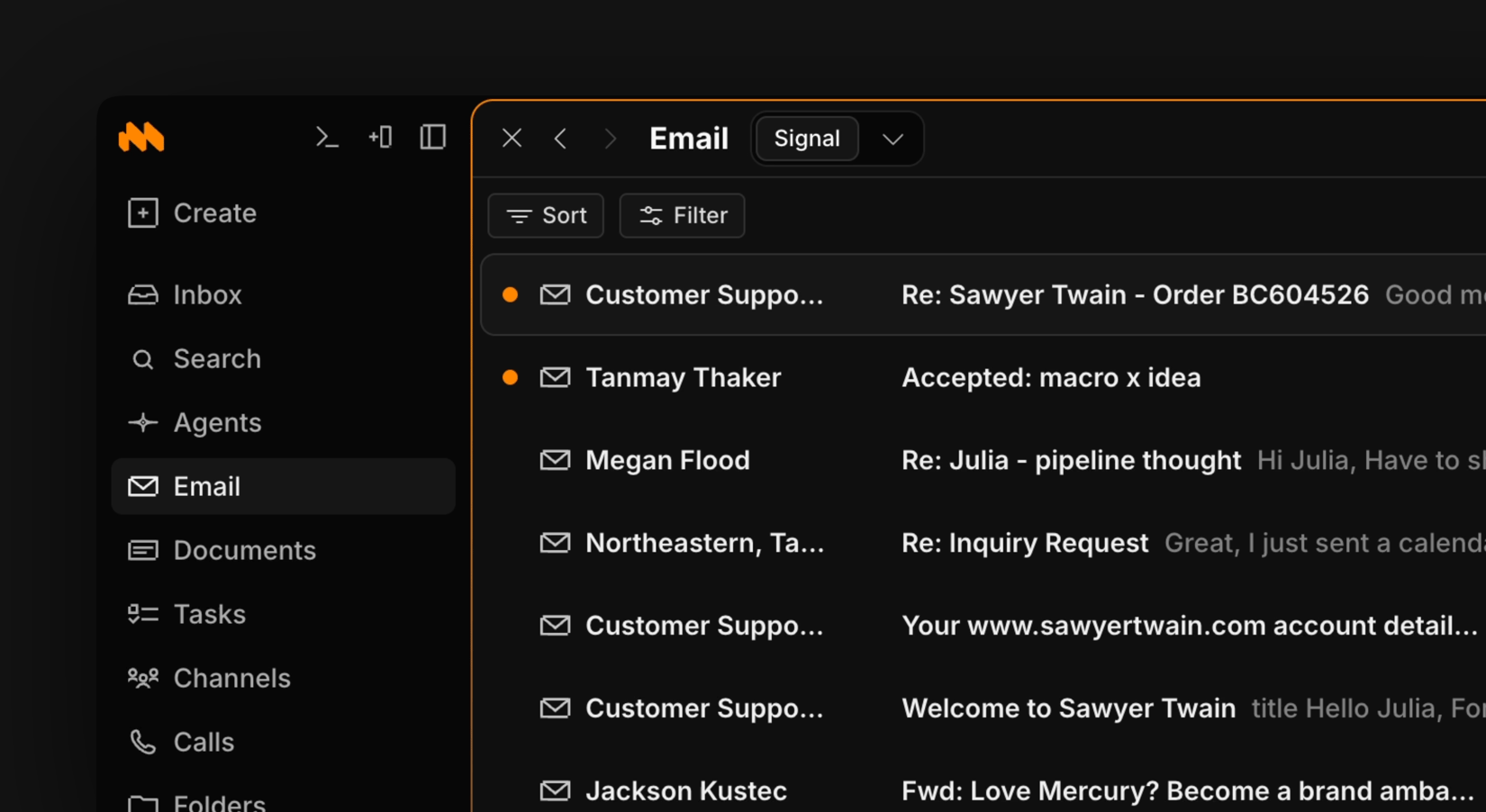
Email lives in the same app as tasks, docs and channels — Signal keeps the important threads up front.
The result of having email built into the workspace is that email becomes ingrained in your workflows. You'll work faster, there's no switching between tabs, and less work gets lost. ClickUp can wire up Gmail or Outlook through integrations, but the inbox still lives somewhere else — another tab, another mental model.
A real email client inside the workspace — inbox, triage, and AI drafting without leaving Macro.
Macro agents can perform tasks with full context
It's not just you who can work more efficiently thanks to the built-in email. Because your inbox, messaging, calls, tasks, and everything else in your workspace share the same memory, agents can act with full context of what's going on.
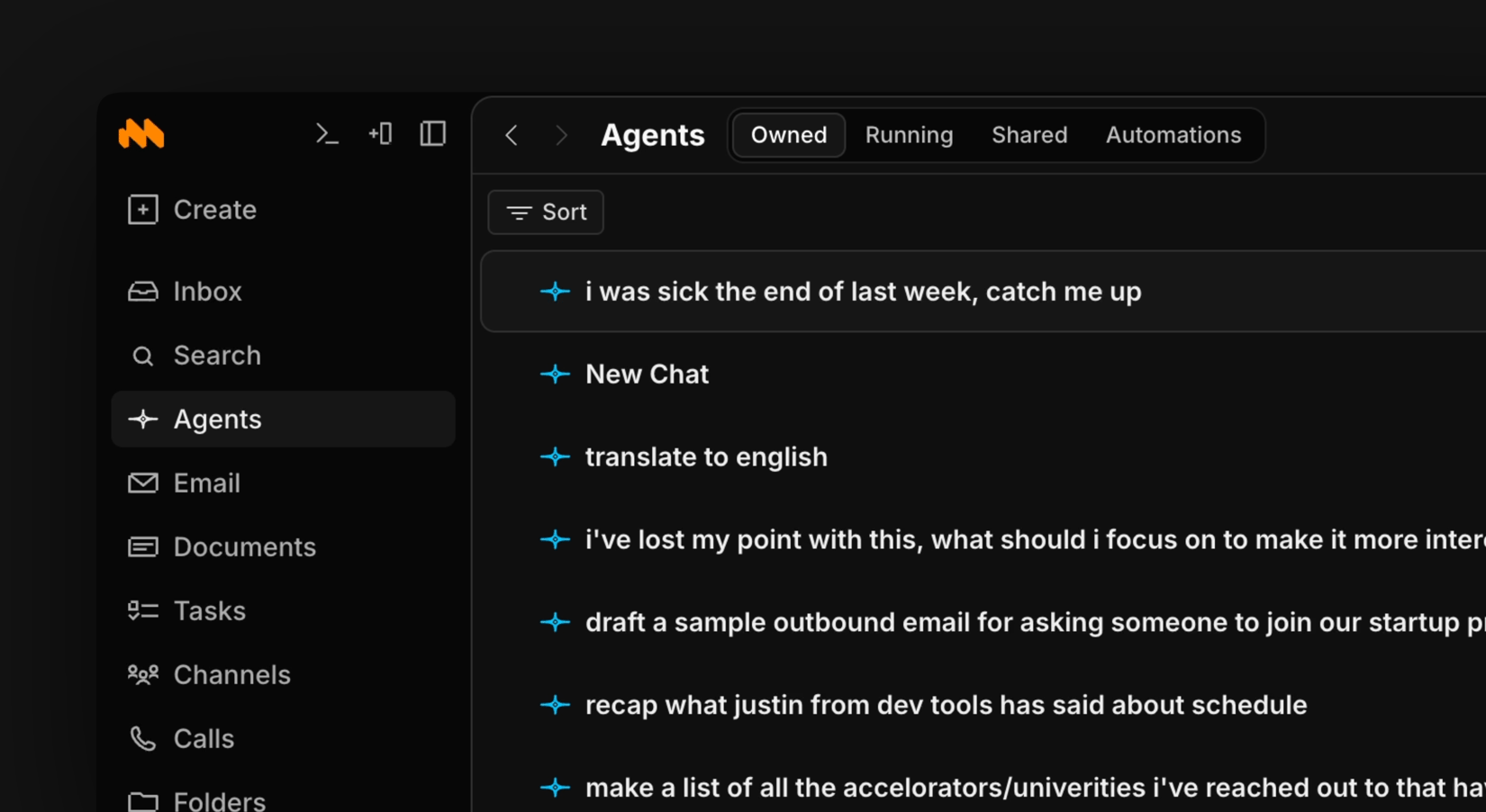
Open an agent from anywhere — it already knows your email, channels, tasks and docs.
You can open the agent from any page, and it can answer questions or perform tasks. At Macro, we use agents daily to summarize documents, create tasks, build drafts, check statuses and perform research.
Agents get even more powerful with automations, which are scheduled jobs that run at the same time every day or week. You can ask the AI to create tasks from your inbox each morning, summarize what your team worked on that week, or pull status reports on every lead in your CRM.
Agents can also be @mentioned directly in a channel to take action. Say a bug report comes in: you can ask the agent to create a task, and it will read the thread, create the task, and link it back to the conversation.
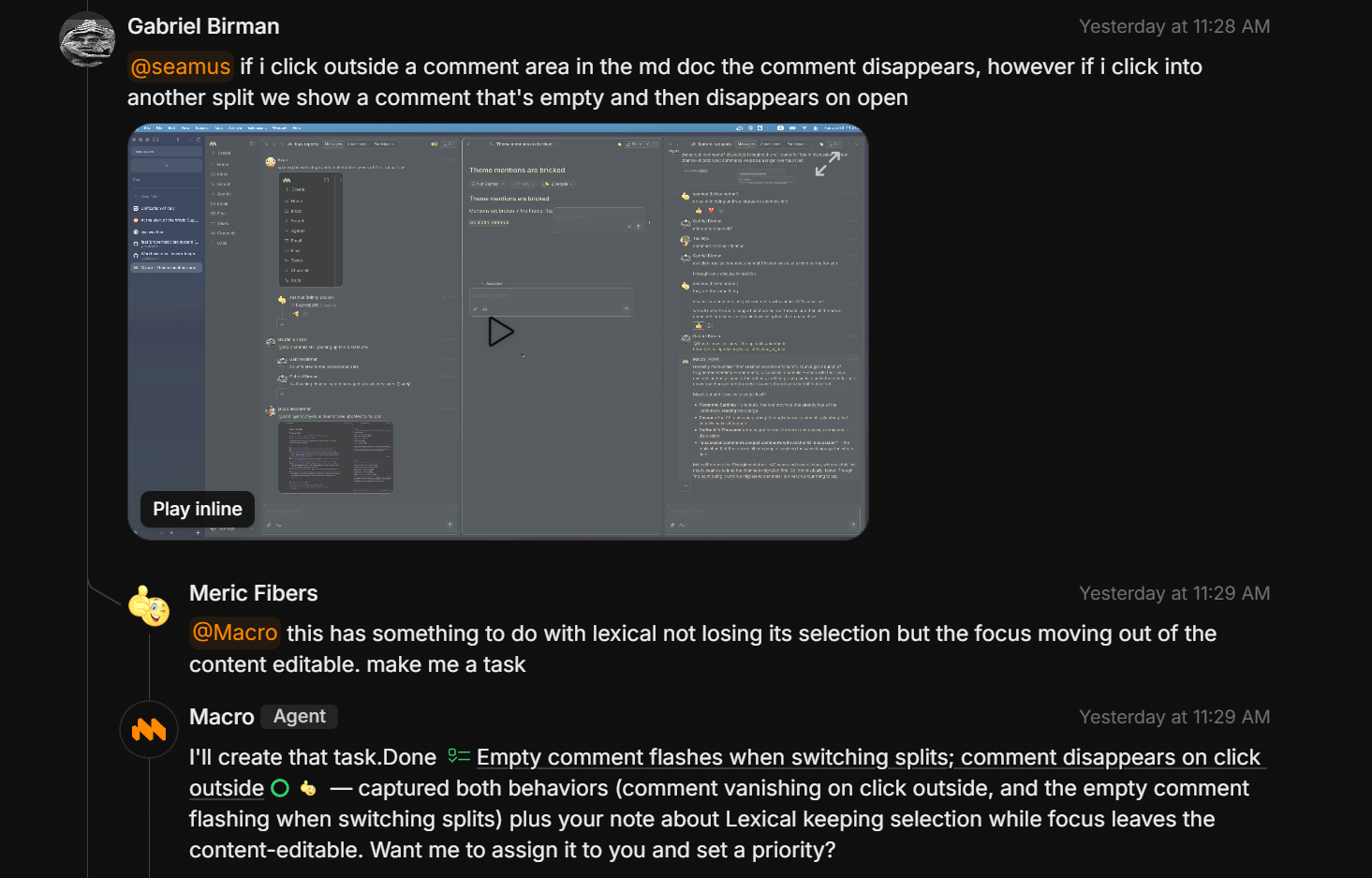
@Macro reads the thread, creates the task and links it back — then asks if it should assign and prioritize it.
Because agents take on the permissions of the person who created them, the agent can create tasks, send messages, and access anything that person can, rather than working from a separate, more limited set of permissions. ClickUp's Brain is capable, but it sits on top of a product that already has a lot of surfaces to keep straight — and it's sold as an add-on rather than the default way the workspace thinks.
Macro is fast, like an IDE for your whole workspace
We built keyboard navigation into Macro so you can move through tasks like you're in an IDE, instead of clicking through layer after layer of menus. In total, we've shipped more than 70 pre-configured shortcuts that let you navigate every option without touching a mouse.
Macro also has its own window manager, letting you open any new menu in splitscreen. It's easy to keep email, channels and docs open side by side, instead of switching back and forth between tabs to keep track of everything.
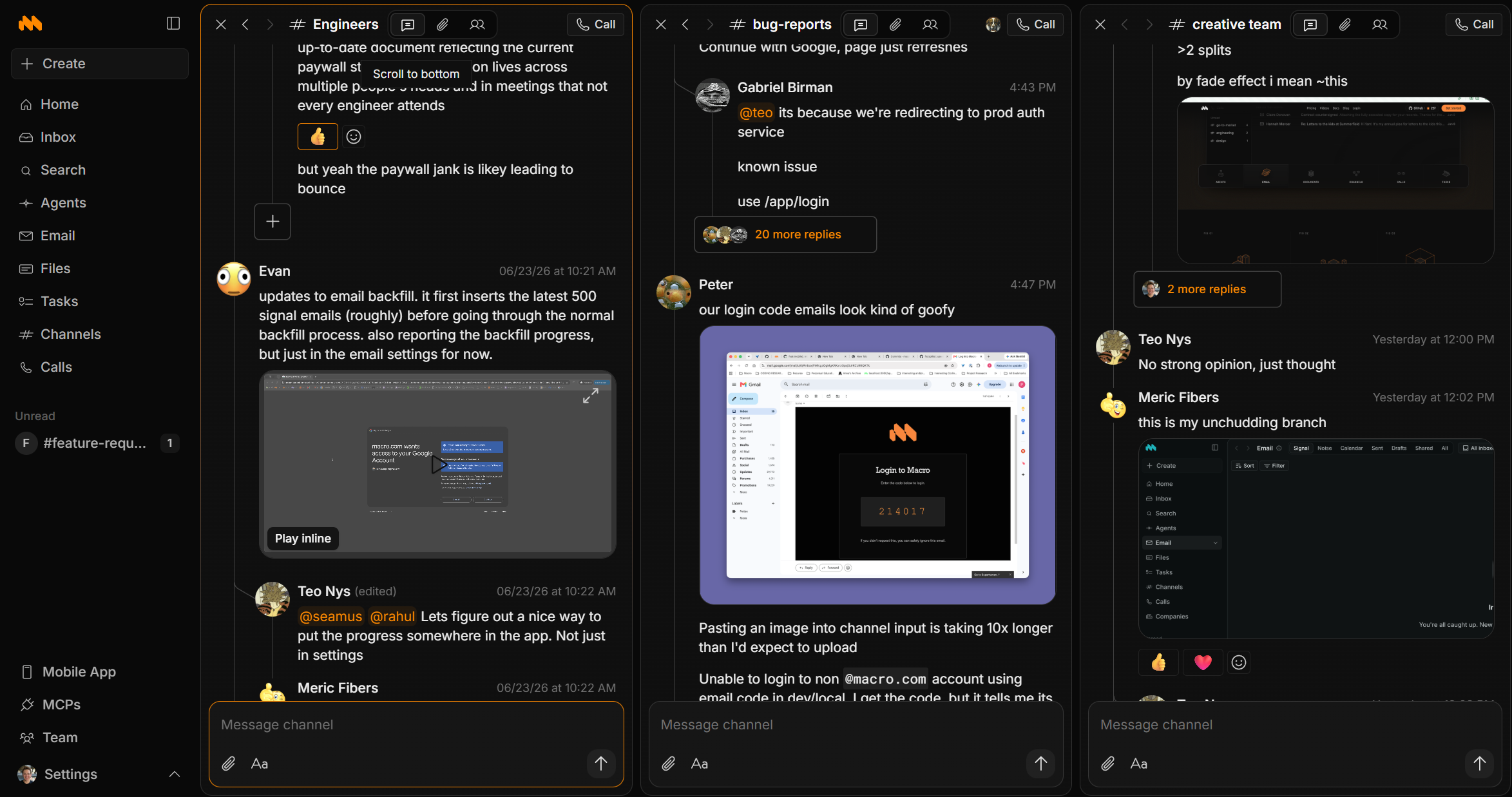
Split view lets you keep multiple surfaces open at once — triage a bug, follow eng and answer design without tab-hopping.
These navigation and windowing features make using the tool feel like second nature to the devs on our team — the opposite of hunting through nested settings to turn something on.
GitHub pull requests land in your Macro inbox
Another feature our engineers love is that Macro tasks link bidirectionally to GitHub, so their pull requests and reviews land right in the inbox, letting them check notifications without ever leaving Macro.
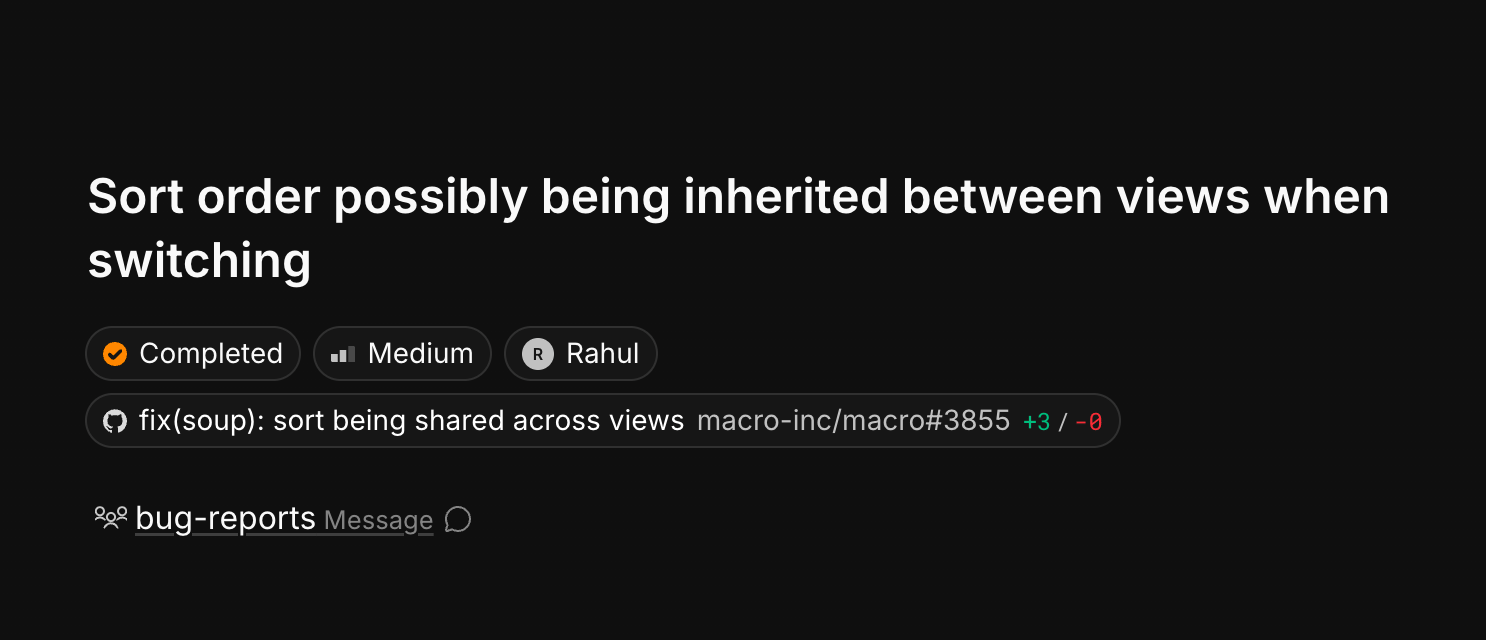
A task with its GitHub PR linked both ways — open the review in a split without leaving Macro.
Additionally, comments are synced both ways, from Macro to GitHub and vice versa. And once tasks land in Macro, you can @mention them in a message, doc or task.
Macro has bidirectional linking with permissions
Bidirectional linking means you can @mention any document you have permission to access in any message, AI chat, task or document.
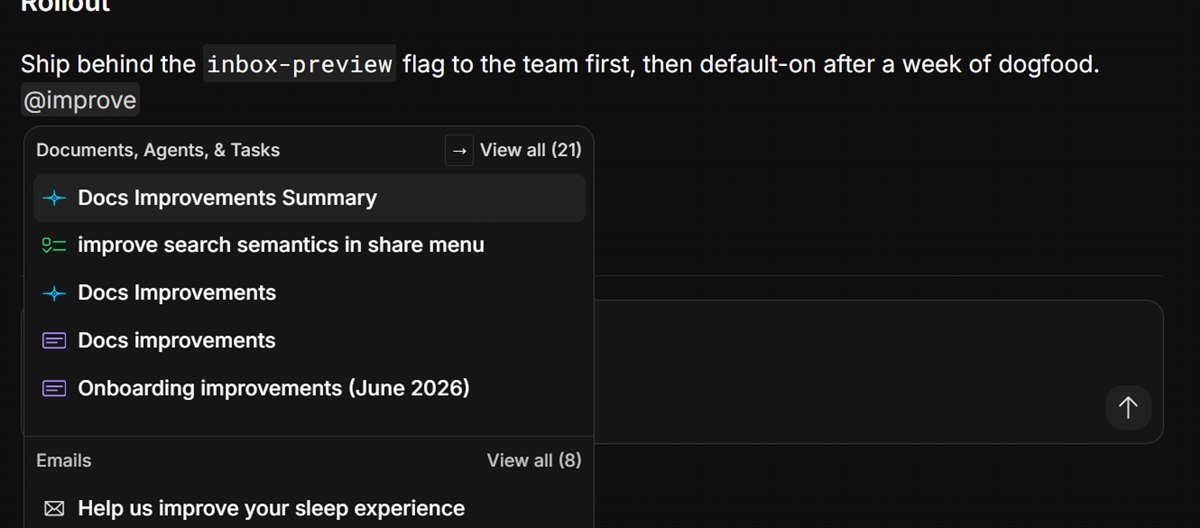
Type @ anywhere and pull in a doc, task, email or agent chat — links go both ways.
When something is linked, a relationship is created between the two items. If you mention a roadmap document in multiple other files, you can see and trace this from the document itself.
Permissions also follow the same logic. When you @mention something in a channel, everyone in it gets access. It means your team doesn't waste time requesting permission to access docs that have already been shared with them.
We made Macro fully open source
Macro is fully open source under the AGPLv3 license: github.com/macro-inc/macro. You can audit exactly how it handles your data, extend it to fit your own workflows, or self-host it on your own infrastructure.
ClickUp is a powerful — and dense — project management tool
ClickUp ships more project-management surface area than Macro. Custom fields, statuses, dependencies, Gantt, workload views, whiteboards, calendars, dashboards — the list is long, and for some organizations that breadth is the point. The tradeoff is that living in ClickUp often means living with a lot of UI: options nested under options, and a workspace that needs ongoing cleanup so it doesn't drift into noise.
ClickUp's hierarchy is familiar, if you can keep it straight
ClickUp organizes work in a Workspace, then Spaces, Folders, Lists, Tasks and Subtasks. That hierarchy maps to how a lot of companies already think about projects, and it will feel recognizable if you've used Trello, Asana or Jira.
Familiar doesn't always mean light. New teammates still have to learn which Space owns what, which List is the "real" one, and which of the many views the team actually uses. Navigation works — it just takes more clicks, and more institutional knowledge, than a flatter product.
ClickUp's task layer is deeply configurable — maybe too deeply
ClickUp's task system supports dependencies, milestones and critical path tracking. Change one date and downstream work can reschedule. Custom fields cover dropdowns, numbers, dates, formulas and relationships. On paper, you can model almost any process.
In practice, that flexibility is where teams get lost. Every custom field and status is another thing someone has to maintain. Workspaces that start clean often end up with duplicate Lists, abandoned views and fields nobody remembers creating. If your org has a dedicated ops person to keep the machine tuned, ClickUp's depth can pay off. If not, the configuration tax shows up every week.
ClickUp Docs can double as a company wiki
Since ClickUp Docs can be organized in folders, you can use them to create a traditional knowledge base or company wiki. That structure is useful when people want to browse rather than search.
The flip side of a folder-heavy wiki is the same problem as the rest of the product: finding the right doc often means remembering which Space and Folder it lives in. Macro is built around search and linking instead — fewer places to lose a page.
ClickUp has plenty of other features — and they add up
Whiteboards, SyncUp video calls, calendars, dashboards, forms, goals — ClickUp keeps adding surfaces, and many of them are useful in isolation. Put together, though, the product can feel like several tools sharing one sidebar. Teams that adopt "everything ClickUp offers" often spend as much time deciding where work should live as doing the work. The integration catalog is large for the same reason: when the core experience is crowded, connecting more tools is how people try to make it fit.
Macro vs. ClickUp pricing comparison
At Macro, we offer a single paid plan. It costs $40 per seat and includes access to the whole workspace and all AI features — one line item, no module matrix.
You can also join a workspace as a Guest for free, with limits on storage and the AI models you can access. Finally, enterprises can get a custom deployment that adds SSO, compliance and self-hosting.
ClickUp's seat price starts lower — $10 to $19 before AI — but the plan ladder and Brain add-ons mean you're often comparing different feature sets at different price points. Fully loaded with AI, teams land somewhere between $24 and $52 per seat. The sticker price looks simple until you map which plan unlocks which toggle.
When to choose Macro
Choose Macro when:
- You're a fast-moving team that wants tasks linked directly to GitHub, with PRs landing in your inbox instead of waiting unseen
- You want an AI-first tool with agents that can access all your team's knowledge, including email, docs, chat, tasks and calls together
- You want super-fast keyboard-first navigation with built-in windowing
- You want one flat price instead of a paywalled feature list, with every module included per seat
- You'd rather have fewer, sharper surfaces than a product you have to continuously configure and clean up
When to choose ClickUp
Choose ClickUp when:
- You specifically need mature sprints, dependencies and Gantt charts, and you're willing to invest in setup and ongoing workspace hygiene
- You're happy with your current email and chat, and just want a task layer added on top — even if that means more apps and more context switching
- You need large-scale dashboards and workload views, and you have people whose job it is to keep ClickUp from getting messy
- Your team isn't ready to move email and chat company-wide, and prefers a smaller change even if the PM tool itself is denser to learn
Macro vs. ClickUp: the verdict
Macro and ClickUp solve different problems. ClickUp has more features on the checklist. Macro is built so you can actually move through the day without fighting the tool — email, chat, docs and tasks in one fast, AI-first workspace, with agents that share one memory.
If what you need is deep project mechanics and you're prepared for the configuration that comes with them, ClickUp can cover that ground. If you want a workspace that stays coherent as you grow — without a thicket of views, statuses and settings to babysit — Macro is the clearer foundation.
Frequently asked questions
Is Macro better than ClickUp for startups?
For most startups, yes. Macro replaces your inbox, chat, docs and task tracker with one AI-first workspace, so shared context is the default. ClickUp offers more project-management knobs, but those knobs are also where small teams lose time — configuring Spaces, cleaning up views, and teaching new hires which List is current. If you want everything connected and AI-ready without a heavy admin burden, Macro is the better place to start.
Is Macro cheaper than ClickUp?
This depends on the plan you choose. ClickUp's base plans cost $10 or $19 per seat per month. To access AI, you have to add another $14 or $33, depending on the features you want. That brings the total with AI to somewhere between $24 and $52. Macro, meanwhile, costs $40 per month for everything we offer — including AI — without sorting which features sit behind which tier.
How does Macro Guest access compare with ClickUp's free plan?
ClickUp's free plan is built for testing the product. You get unlimited tasks and members, but storage is capped at 60MB, and you get limited access to AI tools. Guest access in Macro is free, with a "Sent with Macro" signature and limits on storage and AI.
Does ClickUp not have email?
ClickUp can connect to Gmail or Outlook through integrations, but that isn't an email client. Teams still need a separate tool for their actual inbox, which is one more place work can fall out of sync. Our email client is built into the app itself.
Is ClickUp hard to use?
"Hard" depends on the team. ClickUp isn't missing documentation or training — if anything, it needs them, because there's so much to learn. Power users who enjoy configuring workflows often stick with it. Teams that want to open the app and move get frustrated by how many places a simple task can live. Macro is deliberately narrower so day-to-day use stays fast.
Is Macro open source?
Yes, end to end: github.com/macro-inc/macro. Your data stays open and portable and the app is extensible. ClickUp is closed source.
For tasks, GitHub linking, agents and the rest of the workspace, see the Macro documentation.